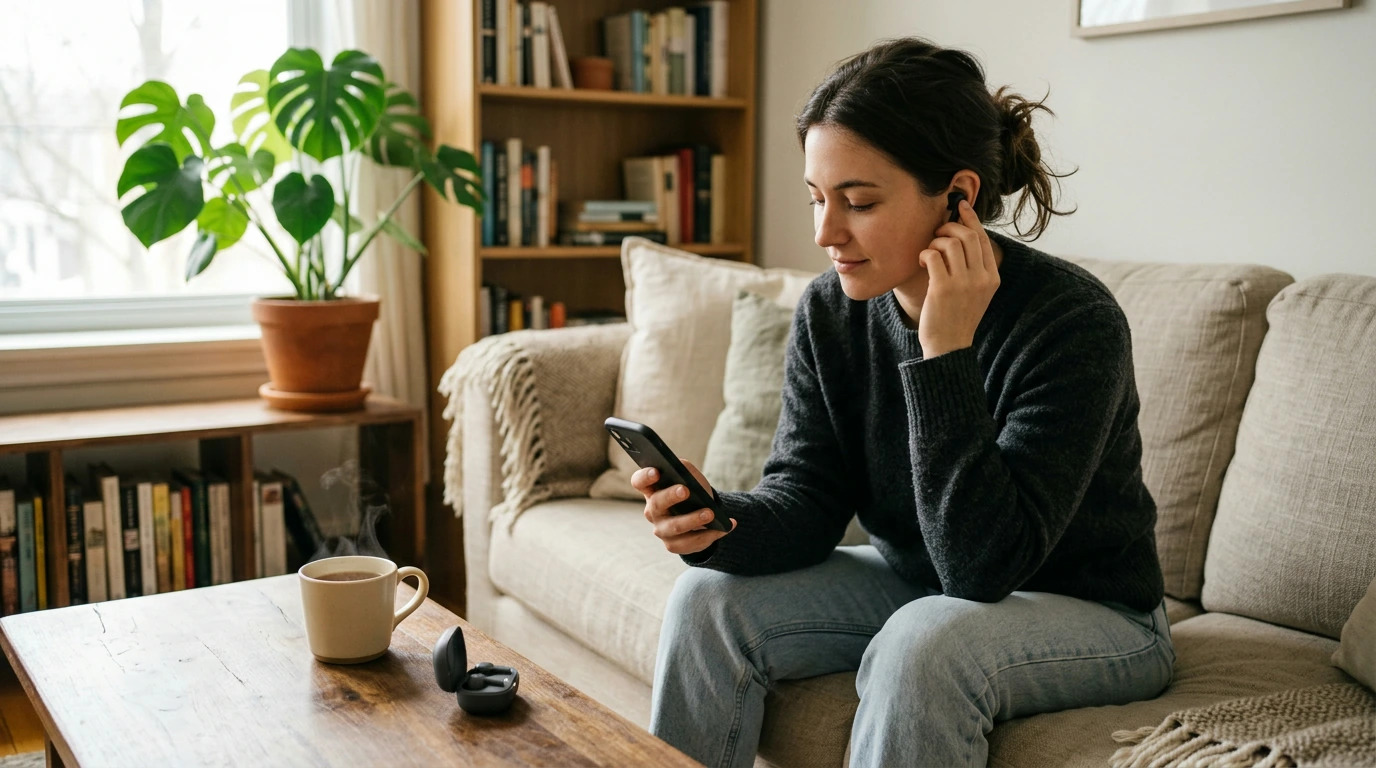
57% off on product page · save $21.98
How to Connect Wireless Earbuds to Bluetooth
Before you begin, charge your earbuds and keep them close to the phone, tablet, or computer you want to connect; a low battery or too much distance can interrupt pairing. Turn the earbuds on and activate pairing mode according to their instructions, which may involve holding a button on the earbuds or charging case until an indicator flashes.
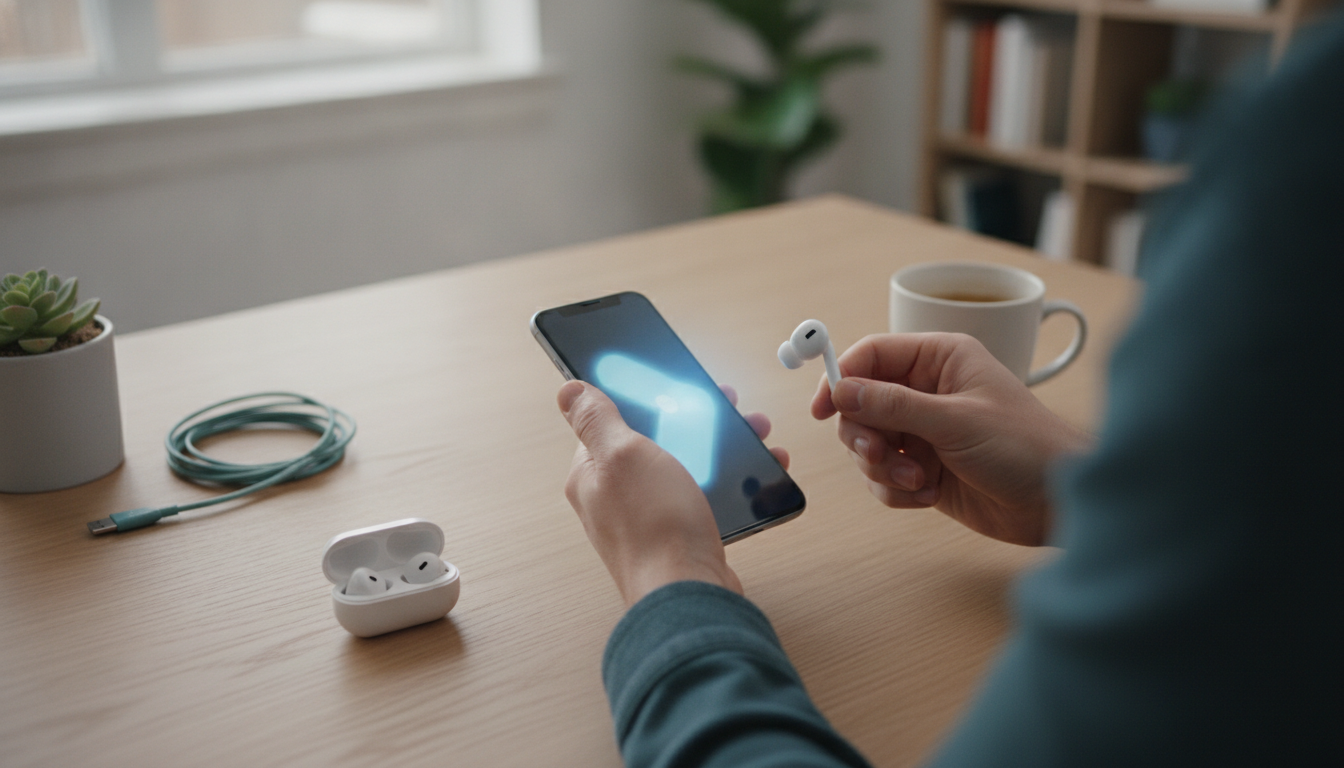
On your device, open Settings, turn Bluetooth on, and look for the earbuds under available or nearby devices; on an iPhone, you’ll find this list under Settings > Bluetooth. Select the earbuds’ name and follow any on-screen prompts, then wait for the device to show that they’re connected before playing audio.
Check the product’s listed specifications when evaluating find the earbuds in bluetooth settings.
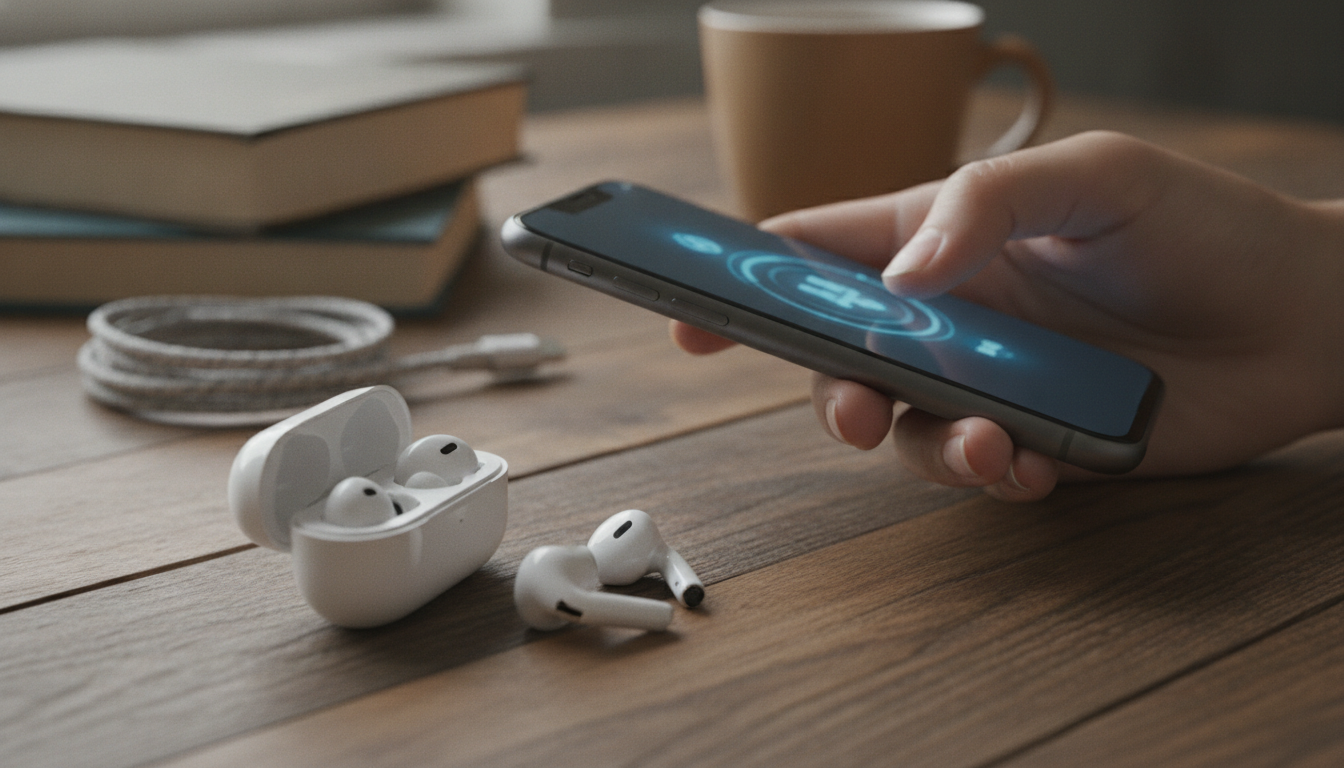
Featured in this guide
Wireless Earbuds with Bluetooth 5.3, 40H Playtime, Noise Cancelling, IP7 Waterproof
Play a song or video at a low volume to make sure sound is coming through both earbuds, and adjust the volume to a comfortable level. If audio still comes from your device’s speaker, open its audio output controls and select the earbuds; our wireless earbud connection guide covers the basic pairing process.
After the first pairing, your device may reconnect when Bluetooth is on and the earbuds are powered up, though you may need to select them again in Bluetooth settings. To pair with another phone or computer, disconnect them from the current device if necessary, put them back in pairing mode, and select them from the new device’s Bluetooth list.
Check the product’s listed specifications when evaluating reconnect or switch devices.
Our Wireless Earbuds with Bluetooth 5.3, 40H Playtime, Noise Cancelling, and IP7 Waterproof are an option if you’re looking for wireless earbuds with those listed features. For any earbuds you use, keep the charging contacts clean and dry before charging, and choose ear tips that feel secure without causing discomfort.
Make sure Bluetooth is on under Settings > Bluetooth, the earbuds are charged and in pairing mode, and they aren’t connected to another device. If they still don’t appear, turn Bluetooth off and back on, restart your iPhone, and try pairing again.
Keep the earbuds close to your device, activate their pairing mode, and look for their name in the device’s Bluetooth settings. If they were paired before but won’t connect, remove or forget the old entry and repeat the pairing process.




Leave a comment